
Core Web Vitals in 2026: LCP, INP and CLS Explained
Core Web Vitals are the three numbers Google uses to judge how a page feels to real visitors: LCP (how fast the main content loads), INP (how quickly the page responds when you tap or click), and CLS (whether things jump around while it loads). I check them on every site I build or fix, and the problems usually come from the same few places. Below are the thresholds you need to hit, what changed recently, and the fixes that make the biggest difference.
Core Web Vitals Thresholds (2026 Field Metrics)
| Metric | Good (Pass) | Needs Improvement | Poor |
|---|---|---|---|
| LCP (Largest Contentful Paint) | ≤ 2.5s | 2.5s – 4.0s | > 4.0s |
| CLS (Cumulative Layout Shift) | ≤ 0.1 | 0.1 – 0.25 | > 0.25 |
| INP (Interaction to Next Paint) | ≤ 200ms | 200ms – 500ms | > 500ms |
Google measures these at the 75th percentile of real visits. In plain terms, at least 75% of your page loads need to hit “Good” for the page to pass, and mobile and desktop are measured separately.
What Changed (and What Didn’t)
The biggest change was in March 2024, when INP (Interaction to Next Paint) replaced FID (First Input Delay) as a Core Web Vital. FID only measured the delay before the first click was handled. INP looks at how quickly the page responds to every interaction during a visit, which is much harder to pass. Since then, the three metrics and their thresholds have stayed the same, so everything below still applies.
Optimizing for the Right Metrics
Fixing Interaction to Next Paint (INP)
INP fails when the main thread is blocked. Heavy JavaScript execution is usually the primary culprit. Break long tasks into smaller chunks. Use scheduler.yield() to hand control back to the browser between long-running scripts.
Third-party scripts are the usual cause of poor INP. Chat widgets, heatmaps, and tag managers all run JavaScript on the main thread, and every one of them competes with your own code when a visitor taps a button. Go through every script on the page and ask whether it is earning its place. Remove the ones that aren’t. For the ones you keep, load them with defer, or delay them until the visitor’s first interaction.
Google defines these metrics and their thresholds in the Web Vitals overview, which I recommend reading before you touch any code.
Not sure which script is slowing your site down? My technical SEO service includes a Core Web Vitals check, and I fix the issues in your code instead of just listing them.
Improving Largest Contentful Paint (LCP)
Hosting matters more than most plugins. If your server is slow to respond (high Time to First Byte, or TTFB), the browser has to wait before it can even start drawing the page, and no amount of image optimization fixes that. Run your page through PageSpeed Insights and look for a warning about server response time. If it shows up consistently, server-level caching or a CDN will usually help more than installing another optimization plugin.
Preload your primary hero assets. Use <link rel="preload"> for above-the-fold elements and inline critical CSS to eliminate render-blocking stylesheets.
To check your current scores, run Lighthouse in Chrome and note the flagged issues before you start fixing.
How to Fix Core Web Vitals in WordPress Without Plugins
Cleaning Up the Header and Assets
WordPress loads default block library scripts and styles on pages that don’t need them. Open your functions.php and dequeue unnecessary assets conditionally:
Add this to your theme’s functions.php:
PHP
function remove_unused_assets() {
    // Dequeue default block library styles conditionally
    if (!is_single()) {
        wp_dequeue_style('wp-block-library');
    }
    // Remove default jQuery on landing pages if unneeded
    if (is_front_page()) {
        wp_dequeue_script('jquery');
    }
}
add_action('wp_enqueue_scripts', 'remove_unused_assets', 100);
Be careful with jQuery. Many themes and plugins (sliders, contact forms, popups) still depend on it. Test this on a staging copy of your site first, and only remove jQuery if nothing breaks.
Slow taps and laggy menus on a WordPress site usually point to script overload, so I wrote a full guide on how to fix INP on WordPress.
Server Compression (Gzip or Brotli) & Native Lazy-Loading
Compression shrinks your HTML, CSS, and JavaScript before they’re sent to the browser. Many hosts already do this for you, so check first: open Chrome DevTools, go to the Network tab, click your page, and look for content-encoding: br (Brotli) or content-encoding: gzip in the response headers. If your site runs behind Cloudflare, Brotli is applied for you. If you see neither, you can enable Gzip yourself on an Apache server with this .htaccess rule:
.htaccess
Apache Config
<IfModule mod_deflate.c>
  AddOutputFilterByType DEFLATE text/html text/css application/javascript
</IfModule>
Bypass heavy lazy-loading plugins and use standard HTML attributes:
<!-- Hero image: Priority loading (No lazy load) -->
<img src="hero.webp" alt="Hero" fetchpriority="high" width="1200" height="630" />

<!-- Below-the-fold images: Native lazy loading -->
<img src="content.webp" alt="Content" loading="lazy" width="800" height="450" />
If your site keeps failing speed checks, my Core Web Vitals fixes cover the exact steps I follow to get LCP, INP, and CLS back into the green.
Eliminating Layout Shifts for Better UX
Handling Dynamic Ad Units and Font Swaps
Fonts swapping late cause sudden text shifts. Fix this with font-display: optional or by preloading key font files.
Ad slots and dynamic banners are frequent CLS offenders. Reserve minimum height wrappers before ads inject content:
styles.css
CSS
.ad-wrapper {
  min-height: 250px;
  width: 100%;
  contain: layout;
}
When a client needs a site that stays fast on mobile, I build it as a fast Next.js website with clean code and no plugin bloat.
Store owners often ask me why their pages crawl after adding apps and funnels. I handle that through a Shopify speed cleanup that removes dead scripts and heavy theme code.
What I Found When I Tested Real Sites
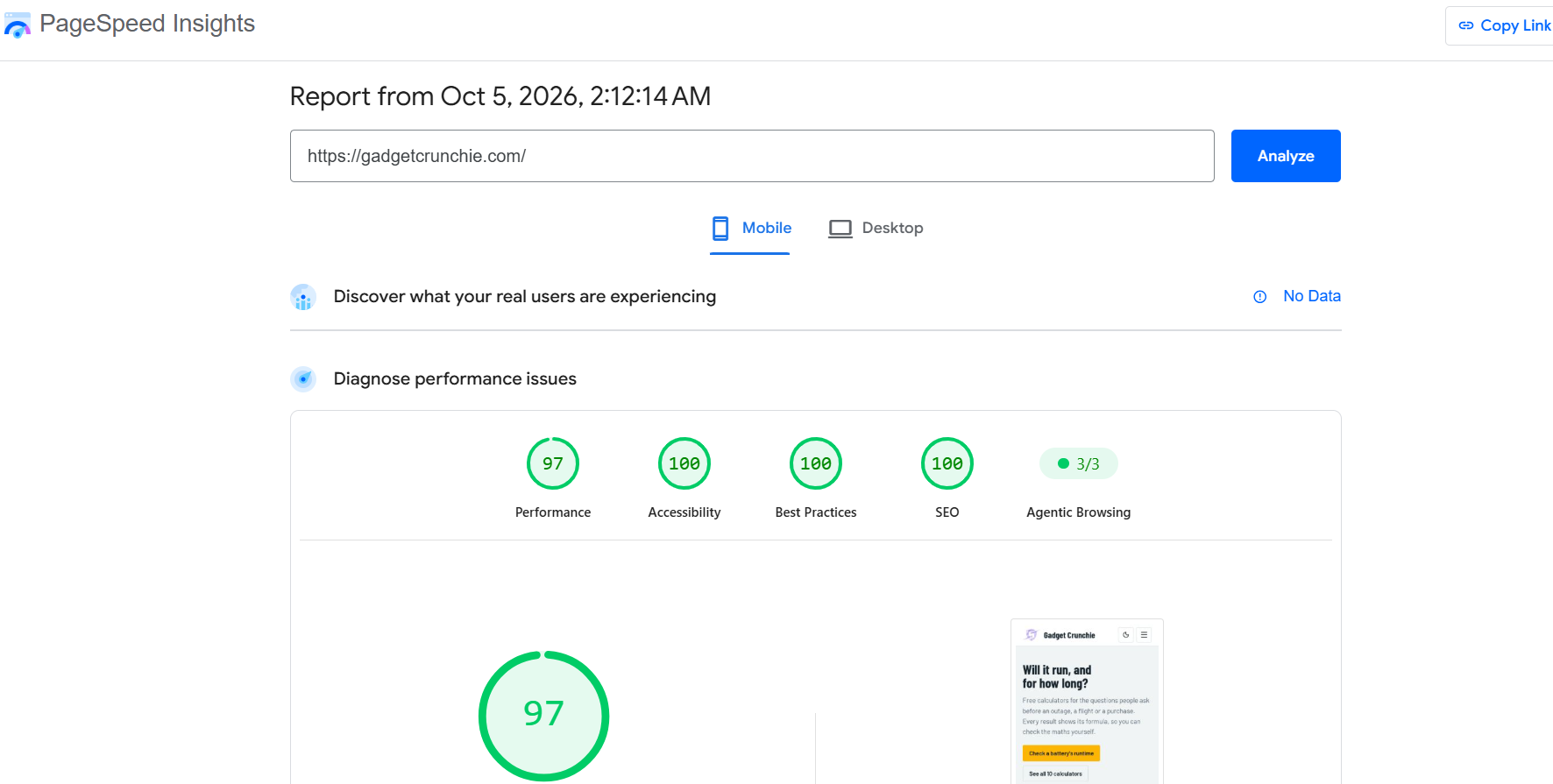
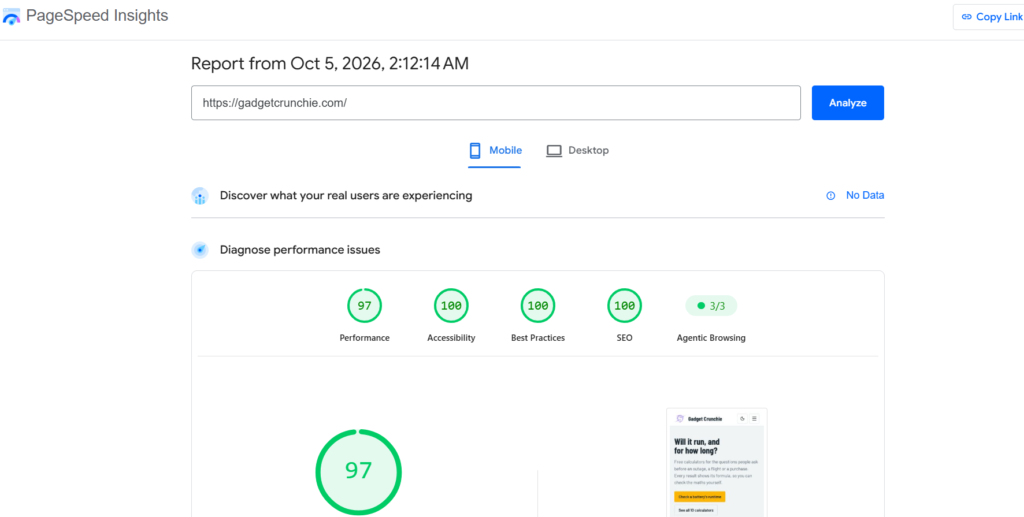
When I rebuilt my own tech site, gadgetcrunchie.com, I moved it from WordPress to Next.js. It now scores around 97 for mobile performance in PageSpeed Insights, with an LCP of 1.8 seconds.
On client sites, the fix is usually less dramatic than people expect. One client’s WordPress site scored 46 for mobile performance. Most of the problem was plugins: several were heavy, and a few were doing the same job twice. I walked the client through which ones they actually needed, removed the rest, and then configured LiteSpeed Cache and their hosting caching settings. Two days later, the site scored 90 in PageSpeed Insights’ mobile lab test, up from 46.
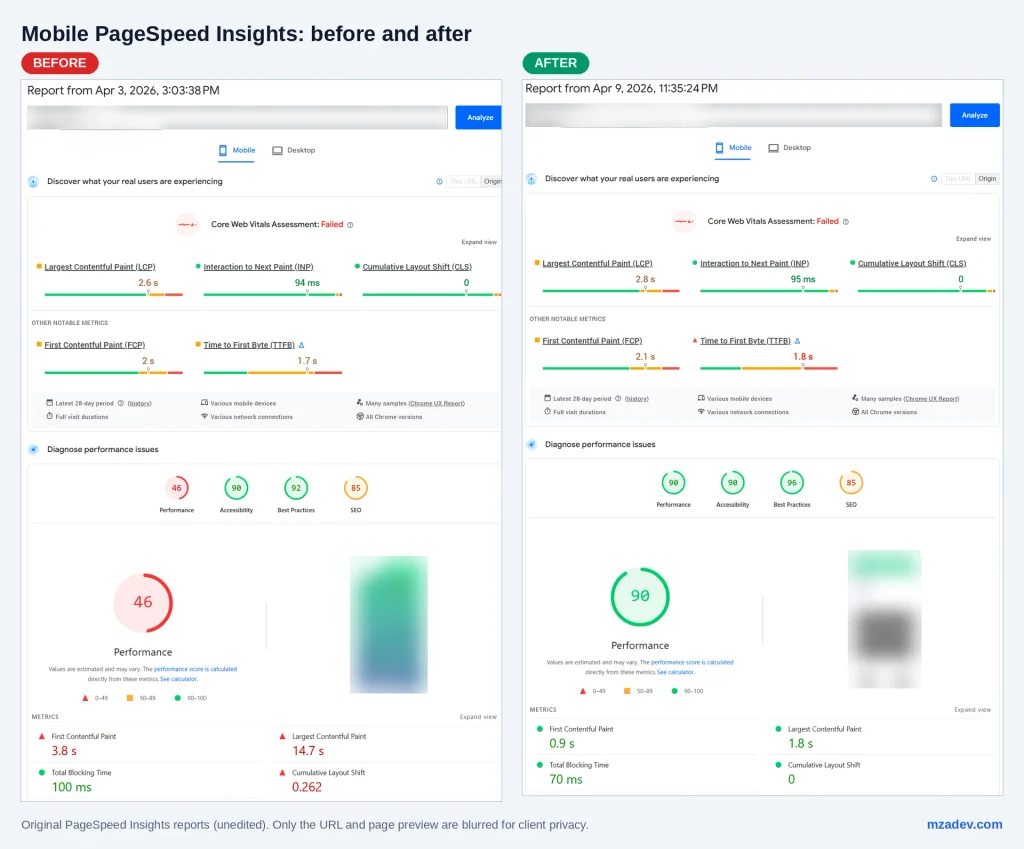
No single plugin made the difference. Removing what the site didn’t need did.
If your WordPress site is stuck in the red, this is the kind of work I do in my WordPress speed fixes.